

 @silentz6
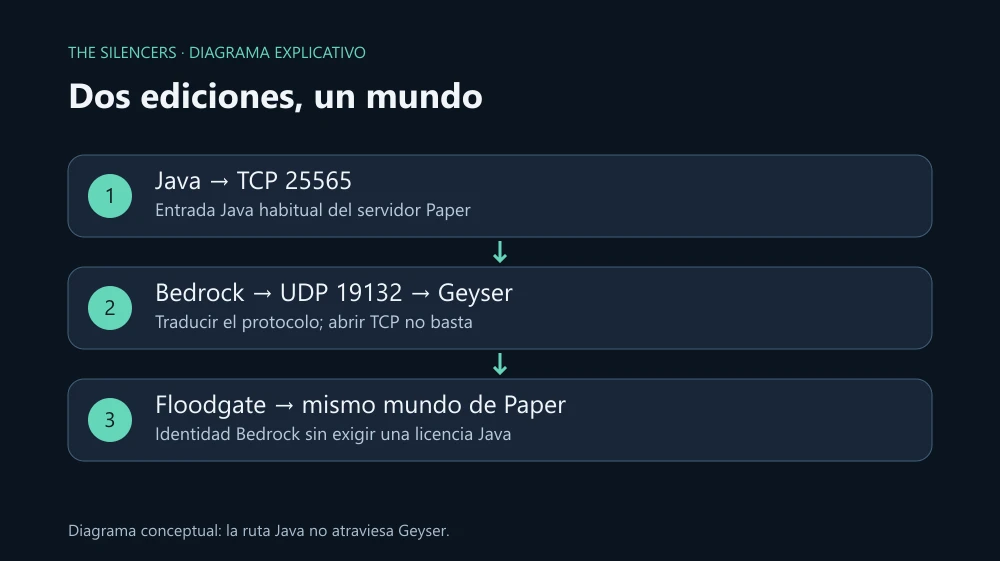
Geyser translates the Minecraft Bedrock connection so it can join a Java server. Floodgate adds access with a Bedrock identity without asking the player for a Java license. We will install them on a standalone Paper server; if you already have a network with a proxy, use the proxy packages and the installation variant explained at the end.
Last reviewed: October 2, 2026. The official API returned Geyser 2.11.3, build 1247 and Floodgate 2.2.5, build 141. The compatibility table consulted supports Bedrock 26.30–26.52 and represents a Java client 26.2. These are verified references, not versions run on this machine. Check the table again before updating: Bedrock clients are updated frequently.
Requirements and installation
Start from a working Paper server with Java and make a copy of the world and of plugins. Geyser-Spigot requires a server 1.20.5 or later and at least Java 21; for Paper 26.1+ use Java 25, as Paper requires. For this walkthrough, choose Paper for Minecraft Java 26.2, avoiding adding version translation on the first test.
Stop Paper with stop. In the official download, choose the Spigot/Paper files for Geyser and Floodgate and place them in plugins. Start once to generate folders and stop the process again before editing. Do not download the Standalone or Fabric variant to place it in that folder.
Configure Bedrock and authentication
Find the block bedrock in plugins/Geyser-Spigot/config.yml. Modify the existing keys; do not replace the entire file with this fragment:
bedrock:
  address: 0.0.0.0
  port: 19132
  clone-remote-port: false
In the same file, locate auth-type and change its value to floodgate, respecting the block and indentation generated by your build. The location of options has changed between configuration formats; that is why you should edit the newly generated file and not reuse an old YAML found in a video.
Keep online-mode=true in server.properties. Floodgate performs the Bedrock identity integration; you do not need to convert the entire server to offline. Its key.pem is sensitive: do not publish it in repositories, support messages, or screenshots. When installing both plugins on the same server, you do not need to manually copy that key to another machine.
Bedrock does not have Java chat signatures. Following the Geyser documentation, change the existing line in server.properties:
enforce-secure-profile=falseThis stops requiring the signed chat profile; it does not disable the Java authentication maintained by online-mode=true. Restart Paper after the changes.
Open the correct protocol
If you manage the router, direct UDP 19132 to the machine's local IP and allow that same UDP port in the firewall. On a hosting service, request or assign a UDP port and write the real number in bedrock.port. If the provider requires sharing a number with Java, consult its instructions before enabling clone-remote-port.
Do not use that port for another UDP service, such as voice or Query. A checker that only tests TCP does not confirm that Bedrock can connect. First verify on the local network and then from an external network; this way you separate a plugin failure from a router failure.
Verify from the client
In Bedrock for Windows or mobile, add a server with the machine's IP and port 19132. From the same Windows machine, the loopback adjustment documented by Geyser may be necessary. From another device on the LAN, use the server's private IPv4, not localhost.
In the Paper console, check:
geyser version
geyser connectiontest TU_IP_PUBLICA 19132
geyser list
Replace TU_IP_PUBLICA; run the last command with the player connected. Test movement, inventory, and chat, and also join with Java. The expected result is that both players share the world while keeping their identities.
If "Unable to connect to world" appears, check UDP assignment, firewall, and the Bedrock version. If a request for a Java account appears, confirm that Floodgate loaded and that auth-type is floodgate. An older Java server needs a compatible ViaVersion; the download and license for that project are at its official site and GPL-3.0 repository.
On Velocity, install Geyser and Floodgate on the proxy, not one Geyser per backend. All destinations must accept the emulated Java version, and you need to adjust force-key-authentication following the secure chat page. Consoles have restrictions for adding external servers: consult their specific section before promising direct access from any device.
Sources and documentation
Projects and developer: Geyser and Floodgate, GeyserMC team. Official page and download: GeyserMC. MIT licenses: Geyser and Floodgate. Paper is by PaperMC and is downloaded from PaperMC. The diagram is original by The Silencers. No third-party binaries are attached.
Official Geyser logo: image linked from the GeyserMC site. Image source. The banner and explanatory diagram are original by The Silencers.


Comments 0
Join the conversation with your account.
Sign inLoading comments…