
 @the-silencers0
Bring up a PostgreSQL database and an Adminer panel to practice SQL from the browser. Compose describes both services, waits for the database to be ready, and stores its data in a volume that survives container replacement.
Last reviewed: October 2, 2026. Configuration reviewed for: Current Compose, official image postgres:18 and adminer:6.1.1, tag published on Docker Hub during the review. The YAML structure was checked; the containers were not run on this machine because it does not have Docker.
Prepare the environment
Install Docker Desktop from its official page on Windows or macOS and start its engine. On Linux you can use Docker Engine and the Compose plugin. Check docker version and docker compose version: the first command needs to be able to contact the engine. This recipe uses docker compose, with a space, and does not require the old executable docker-compose.
Create an empty folder and add a file .env:
POSTGRES_PASSWORD=CAMBIA_ESTE_VALOR_POR_UNA_CLAVE_LARGAReplace that text with your own password before starting. Also save a .gitignore with a line .env. The file is plain text: do not upload it to the repository or include it in screenshots. These credentials are for a local development database.
Two services, one network
Save the following as compose.yaml inside that same folder:
name: silencers-lab
services:
  db:
    image: postgres:18
    environment:
      POSTGRES_USER: lab
      POSTGRES_DB: lab
      POSTGRES_PASSWORD: ${POSTGRES_PASSWORD:?Define POSTGRES_PASSWORD en .env}
    volumes:
      - db_data:/var/lib/postgresql
    healthcheck:
      test: ["CMD-SHELL", "pg_isready -U lab -d lab"]
      interval: 5s
      timeout: 3s
      retries: 20
      start_period: 10s
  adminer:
    image: adminer:6.1.1
    environment:
      ADMINER_DEFAULT_SERVER: db
    ports:
      - "127.0.0.1:8080:8080"
    depends_on:
      db:
        condition: service_healthy
volumes:
  db_data:
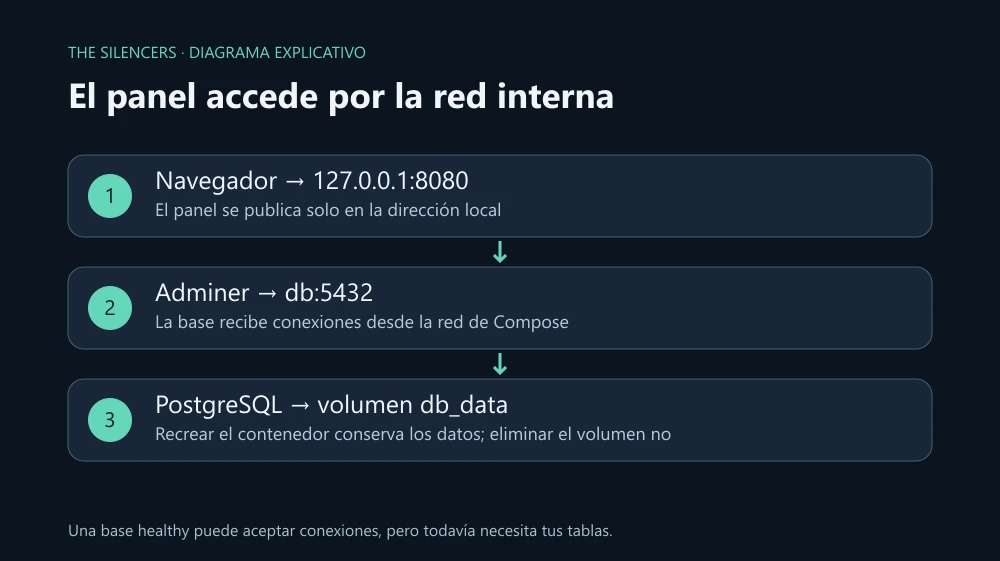
db is the DNS name that Adminer uses inside the project network. There localhost would point to the panel's own container. The database does not publish port 5432 on your machine; the panel does publish 8080, bound exclusively to the local address.
The volume points to /var/lib/postgresql: the PostgreSQL 18 image uses a directory per version under that path. Do not copy without reviewing the mount /var/lib/postgresql/data from examples for earlier versions. The healthcheck checks server availability; it does not verify that your application has tables or that its password is correct. depends_on waits for that healthy state when creating the panel.
Start it and create something you can recover
Run in the project folder:
docker compose config --quiet
docker compose pull
docker compose up -d
docker compose ps
Validation must finish without errors and db must reach healthy. Open http://127.0.0.1:8080. In Adminer select PostgreSQL, server db, user lab, database lab and the password from .env. Do not enter 127.0.0.1 in the server field.
Open the option to run SQL and create a test table:
CREATE TABLE notes (
  id bigint GENERATED ALWAYS AS IDENTITY PRIMARY KEY,
  body text NOT NULL
);
INSERT INTO notes (body) VALUES ('El volumen conserva esta nota');
SELECT * FROM notes;
A row should appear. Now run docker compose down and then docker compose up -d. Query the table again: it should still be there because the volume was not removed. Do not use down -v if you want to keep it: that option removes the project's declared volumes and their data.
When something does not start
If the engine does not respond, open Docker Desktop or check the Engine service. If 8080 is busy, change only the port on the machine side, for example 127.0.0.1:8081:8080, and visit 8081. To investigate the database use docker compose logs --tail 80 db; avoid publishing logs that contain credentials.
Changing POSTGRES_PASSWORD in .env does not change the password of a database that already exists in the volume: initialization variables are applied when creating an empty data directory. Change the password from PostgreSQL or create a new lab after backing up what is necessary. Also do not upgrade a major version by changing only the tag: plan a migration or restore.
The volume provides local persistence, not a backup. As a next exercise, export the table from Adminer and restore it in another project; verify recovery before trusting that backup.
Sources and documentation
Projects and developers: Docker Compose, Docker and contributors, Apache 2.0 repository; PostgreSQL, PostgreSQL Global Development Group, download and license; Adminer, Jakub Vrána and contributors, image maintained by Tim Düsterhus, official site and download, Apache 2.0 or GPL 2 depending on the project. Official Docker Desktop has its own terms of use. The original Docker Hub images are linked; no third-party packages are attached. Original diagrams by The Silencers.


Comments 0
Join the conversation with your account.
Sign inLoading comments…